Power and data share the cable
Power over Ethernet supplies electrical power through compatible network equipment and cabling. A phone must support the relevant method, and the switch or injector must provide suitable power. An ordinary Ethernet port is not necessarily a power source.
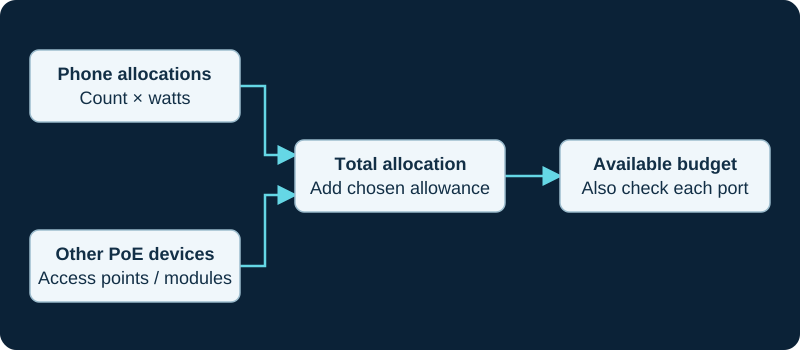
Example allocation model. Use exact equipment ratings; a switch-wide budget does not override a port power limit.
Two limits to check
First confirm per-port compatibility and allocation. Then compare all powered devices with the switch's available total budget. A switch can have enough ports but insufficient total output for phones plus access points and cameras.
Accessories can increase a phone's requirement. Use official device and switch specifications for the intended configuration, not only an idle power measurement.
Plan continuity
A UPS protecting the PoE switch can keep phones powered during a local outage, but the router, access device and any PBX also need a working power path. The switch's own consumption must be included in UPS sizing.
Validate the installed group
Use the PoE budget calculator to make allocation assumptions visible. Then inspect switch power status with all intended devices connected and test a controlled restart. Record reduced budgets associated with power-supply or redundancy modes.
Include speaker topology in the PoE budget
The Algo 8196 uses PoE or PoE+ and shares its available audio power among the primary and up to three satellites. The 8507 horn array instead requires both mains and PoE. Capture the exact endpoint, negotiated class and attached topology rather than inferring acoustic output from link state.
Separate a power cycle from a network restart
If a phone repeatedly boots, briefly powers up or disappears when other powered devices start, use the IP-phone power-cycle diagnostic. It preserves device uptime, switch PoE state, allocation, actual draw, controller faults, port link and SIP recovery as separate evidence. A lost registration or Ethernet link is not by itself proof that the phone lost electrical power.
Budget power for the control station and door system separately
The GSC3570 documents integrated PoE, but PoE to the station does not necessarily power a lock, external sensor, camera or emergency-release circuit. Record each supply, switch budget, relay rating and outage behavior rather than treating one powered display as full-system readiness.
Budget 2N intercom and lock power separately
The IP One and IP Verso 2.0 list IEEE 802.3af PoE, but an intercom power budget does not automatically cover a strike, maglock, external controller, reader module or emergency-release circuit. Record each supply, load, switch class and outage result.
Budget T88 power with the real accessory set
The T88W Pro and T88V Pro document IEEE 802.3af PoE Class 3 plus USB, Bluetooth and expansion paths. Confirm negotiated power and recovery with the exact handset, headset, storage and modules attached instead of treating class support as an end-to-end budget.
Budget Fanvil Pro phones with the real accessory set
The V62 Pro and V66 Pro document IEEE 802.3af PoE, but their displays, radios and accessory paths differ. Confirm negotiated power and recovery on the chosen switch port with the actual BTH60, headset, USB device and network path attached.
Treat the paging console as a control-plane PoE load
The Algo 8450 documents PoE or PoE+ operation, with LLDP power negotiation guidance. Confirm switch class, budget, cable, protected indoor route, VLAN and restart behavior; power to the console does not establish powered or reachable receivers.
Do not extend PoE evidence onto the Wi-Fi path
The D810W supports PoE on wired Ethernet and integrated Wi-Fi for network access. The exact-model guide requires an independently verified power source for wireless placement.
Separate GRP2624 power from its active data path
The GRP2624 documents integrated 802.3af PoE, a separate adapter path, Gigabit Ethernet and Wi-Fi. A lit display proves neither Ethernet nor radio service. Test power, active interface, accessories, provisioning, registration and recovery separately.
Record the 8450 power path before diagnosing output
The Algo 8450 reference binds the console to its negotiated PoE source, switch reserve and controlled power-loss recovery evidence.
Budget the exact E60 PoE source
The Studio E60 reference records its 30 W PoE+ Type 2/Class 4 requirement and the different G62 and G7500 LLN power behavior.
Prove GRP power, link and service in sequence
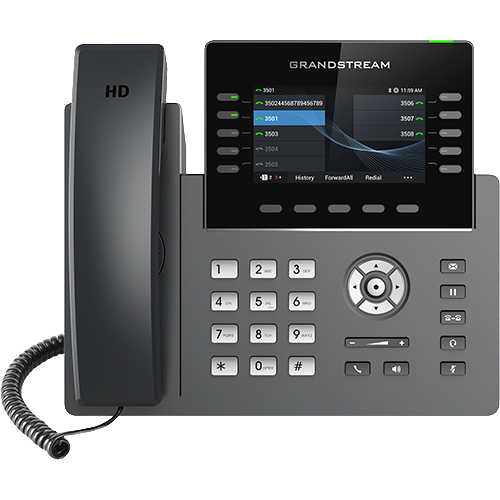
Integrated PoE on GRP2613 and GRP2615 does not prove switch budget, link, VLAN, provisioning, registration or a completed call.
Prove Edge E power, link and service separately
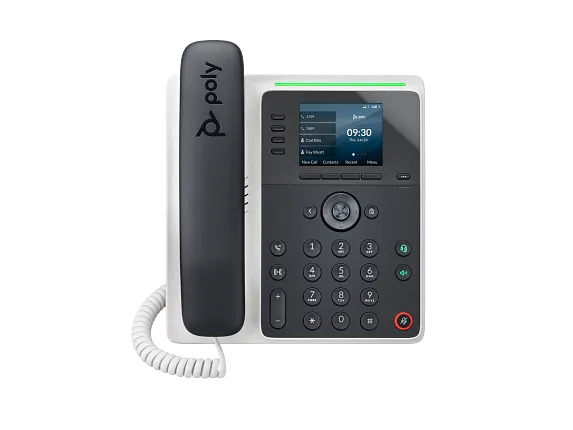
PoE on the E100 and E220 does not prove link, VLAN, provisioning, registration, headset audio or a completed call.
Budget Cisco 9800 USB and KEM loads with the host phone
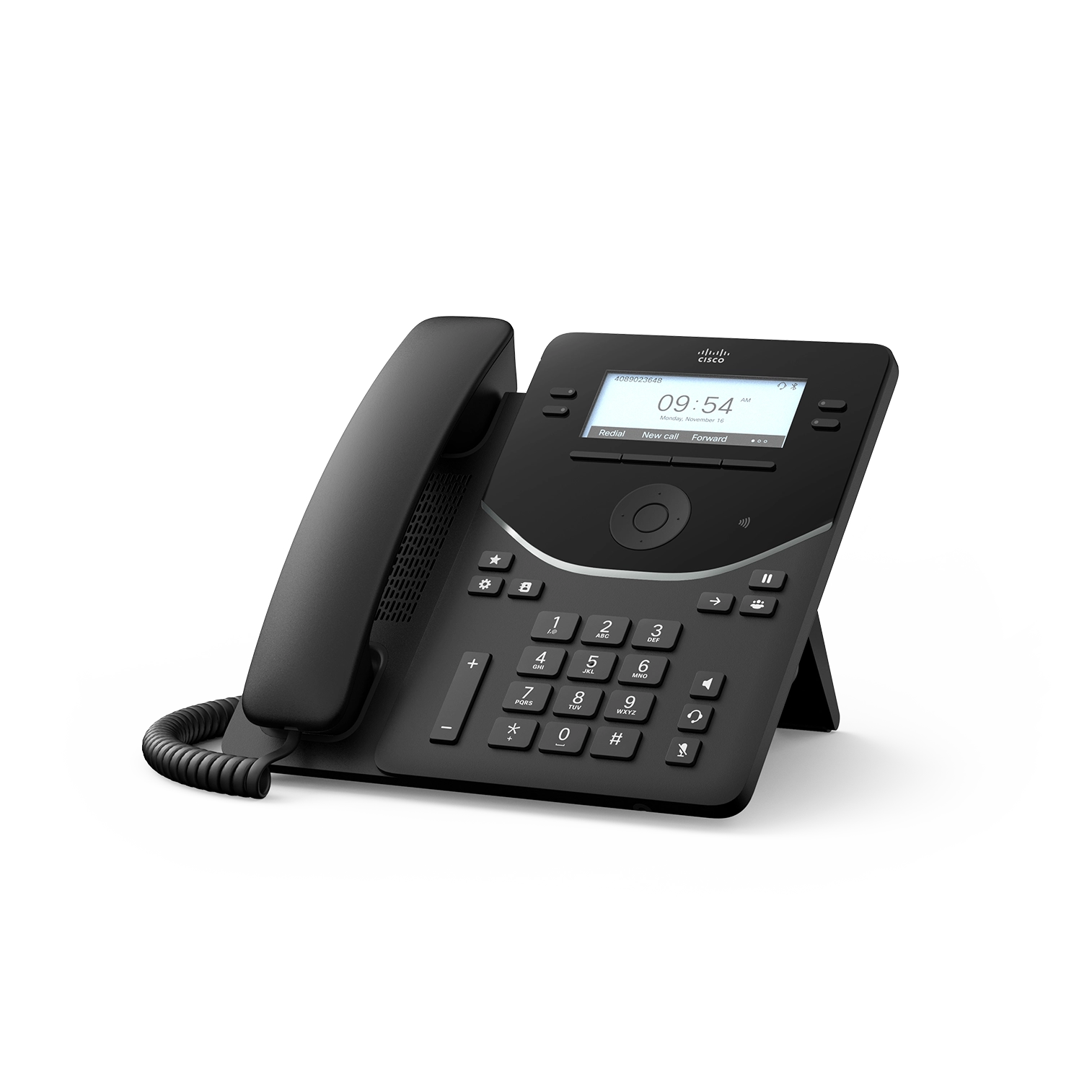
The 9851, 9861 and 9871 references distinguish PoE class, local power, USB output and one-versus-three KEM operation.
Budget Poly Edge E phone, USB-C and expansion loads together
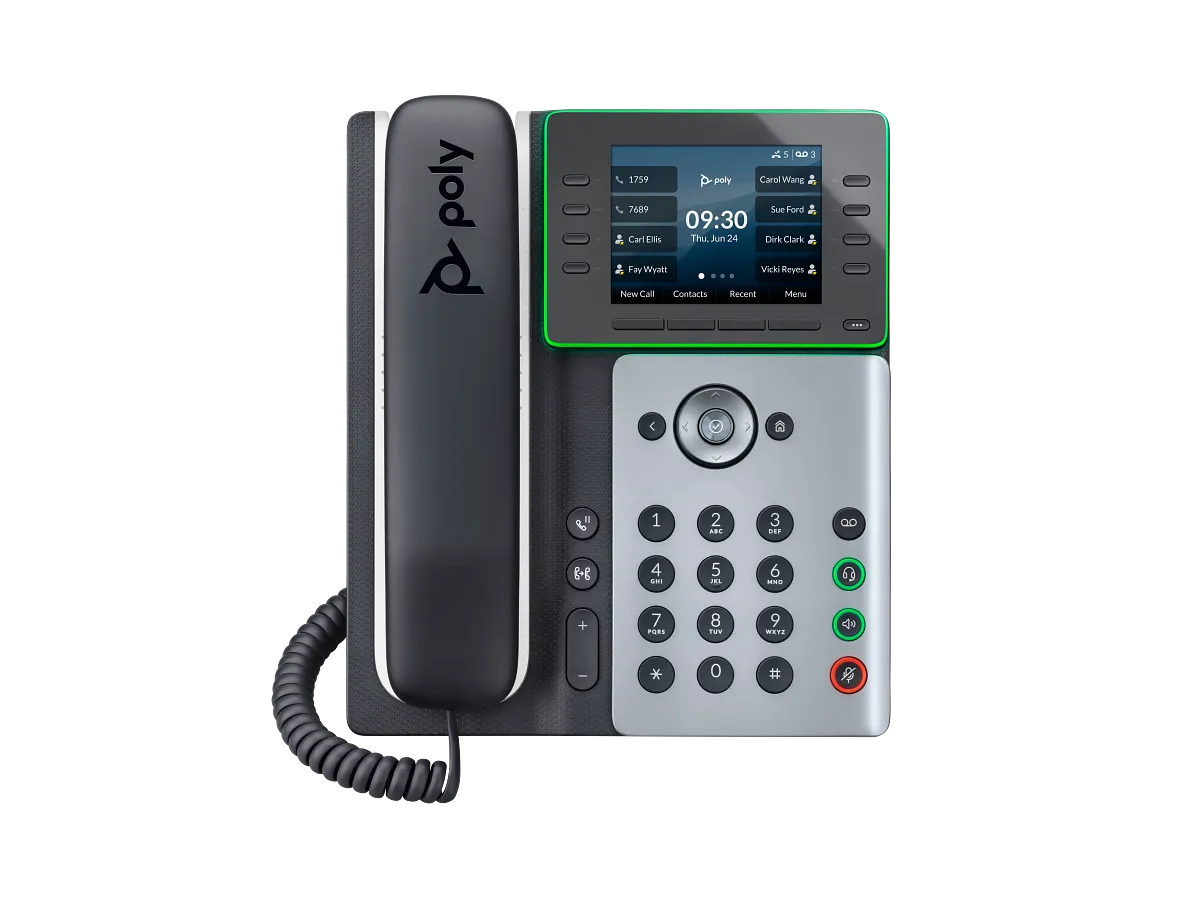
The E400 and E450 references add one supported expansion module to the installed phone, power and accessory evidence chain.
Use PoE+ or approved AC power for a second E500-series module
The E500 and E550 guides retain HP's PoE+ or AC-adapter requirement for two expansion modules without treating power as feature proof.
Preserve Trio C60 LAN input and output power roles
The Trio C60 full-radio data sheet lists 802.3at Class 4 LAN input and 802.3af LAN output. Power presence does not prove the attached topology, call application or room audio.
Map every Rove base power path before radio diagnosis
Record switch port, PoE source, outage behavior and recovery for each base. Power presence does not prove multicell membership, synchronization, registration or handset service.
Keep VP59 power and service state separate
The VP59 diagnostic checks approved supply or PoE, boot, link, edition and service in order.
Keep GAC2570 PoE+ and battery roles separate
PoE+ can supply the wired endpoint while the built-in battery is a different power state. Neither proves network reachability, registration, host selection or room audio.
Watch the explanation
Follow the stand, network cable and handset assembly before the phone retrieves its service settings. The narration starts with a phone already prepared by Accelerate Networks, making this a useful orientation for a new desk user receiving a managed handset.
Read applicability and editorial notes →Watch this video here
GRP2615 hardware with Accelerate Networks provisioning. The account and park-key configuration are supplied by the service; a retail phone needs additional setup. Review used the available transcript and primary references; audio and screen readability remain unverified.

The player loads only when you choose Watch here. Playback uses YouTube’s privacy-enhanced embed; YouTube processes playback data.
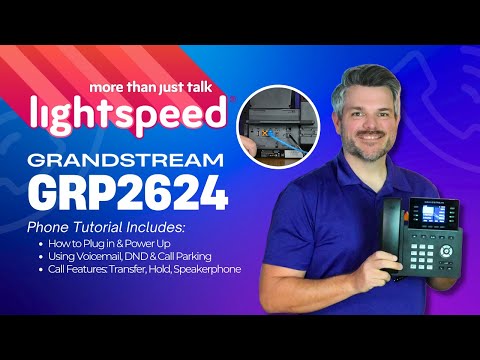
Start with the physical connections and continue through the operations a new GRP2624 user will need: answering, holding, transferring, conferencing and checking messages. The guide connects the phone’s softkeys to the provider’s shared voicemail and parking setup. Its wiring explanation is also a useful companion when a desk shares one network cable between a computer and phone.
Read applicability and editorial notes →Watch this video here
Lightspeed Voice’s GRP2624 configuration. Hardware revisions and later firmware can change capacity or available menus. Review used the available transcript and primary references; audio and screen readability remain unverified.
The player loads only when you choose Watch here. Playback uses YouTube’s privacy-enhanced embed; YouTube processes playback data.
Sources & applicability
Primary references for the technical details above. Operational examples and planning checklists are VoIP.info editorial guidance.
- Cisco — Power over Ethernet ↗
- Cisco Catalyst 9000 PoE troubleshooting ↗
- Cisco Meraki PoE troubleshooting ↗
- Algo current IP-speaker portfolio ↗
- Algo speaker documentation index updated September 28, 2026 ↗
- Algo speaker coverage and placement guide ↗
- Algo 8196 product page ↗
- Algo 8197 product page ↗
- Algo 8507 product page ↗
- Algo multicast guide ↗
- Grandstream GSC3570 datasheet ↗
- Grandstream GSC3570 connection and wiring diagrams ↗
- 2N IP One product and technical specifications ↗
- 2N IP Verso 2.0 product and technical specifications ↗
- 2N IP One installation manual 3.3 ↗
- 2N IP Verso 2.0 installation manual 3.3 ↗
- Yealink SIP Phone T88 series product page ↗
- Yealink SIP-T88W Pro datasheet ↗
- Yealink SIP-T88V Pro datasheet ↗
- Yealink SIP-T88V Pro support centre ↗
- Yealink T88 line-key administration ↗
- Yealink T88V Pro video settings ↗
- Fanvil V62 Pro product page ↗
- Fanvil V62 Pro datasheet ↗
- Fanvil V62 Pro document centre ↗
- Fanvil V62 Pro firmware page ↗
- Fanvil V66 Pro product page ↗
- Fanvil V66 Pro datasheet — Android wording ↗
- Fanvil V66 Pro datasheet — Linux wording ↗
- Fanvil V66 Pro document centre ↗
- Fanvil V66 Pro firmware page ↗
- Fanvil Security Center support-period statement ↗
- Algo current product portfolio ↗
- Algo IP console category ↗
- Algo 8450 IP Console product page ↗
- Algo 8450 IP Console product sheet ↗
- Algo 8450 IP Console user guide ↗
- Algo 8450 firmware download page ↗
- Algo firmware 5.7 release announcement ↗
- Algo central provisioning guide ↗
- Snom D810W product page ↗
- Snom D8xx desk-phone family ↗
- Snom SRAPS secure redirection and provisioning service ↗
- Snom Security Center ↗
- Snom product security lifecycle ↗
- Snom TLS support reference ↗
- Grandstream GRP2624 product page ↗
- Grandstream GRP2624 datasheet ↗
- Grandstream GRP2624 quick installation guide ↗
- Grandstream GRP26xx administration guide ↗
- Grandstream GRP26xx firmware upgrade guide ↗
- Grandstream current firmware and release-notes index ↗
- Algo firmware 5.6 release notes ↗
- Algo local-network redundancy article ↗
- Algo 8450 paging and alert activation article ↗
- HP Poly Studio E60 product page ↗
- HP Poly Studio E60 data sheet ↗
- HP Poly Studio E60 User Guide ↗
- HP Poly Studio E60 System Web Interface User Guide ↗
- HP Poly Video Mode Administrator Guide 4.7.0 ↗
- HP Poly VideoOS Software Release Notes 4.X ↗
- HP Poly Video Room Preparation Guide ↗
- HP Poly Studio E60 product specifications ↗
- HP Poly Video Mode User Guide 4.5.0 ↗
- HP Poly Studio G62 User Guide ↗
- Grandstream GRP2613(W) product page ↗
- Grandstream GRP2615 product page ↗
- Grandstream GRP2615 datasheet ↗
- Grandstream GRP261x series user guide ↗
- Grandstream GRP26xx virtual multi-purpose keys guide ↗
- Grandstream firmware directory ↗
- HP Poly Edge E Series product family ↗
- HP Poly Edge E Series Administrator Guide, PVOS 8.2.1 ↗
- HP Poly Edge E Series User Guide, PVOS 8.2.1 ↗
- HP Poly Voice Software 8.6.1 release notes ↗
- HP Poly Edge E Series flexible line key assignments ↗
- HP Poly Edge E Series PVOS 8.0.0 release notes ↗
- HP Poly Edge E Series safety and regulatory notices ↗
- HP Poly Edge E100 and E220 specification sheet ↗
- Cisco Desk Phone 9800 Series data sheet ↗
- Cisco Desk Phone 9800 Series get-started guide ↗
- Cisco PhoneOS 9800 and 8875 release notes ↗
- Cisco Desk Phone 9800 Key Expansion Module guide ↗
- Cisco Desk Phone 9800 Series security technical paper ↗
- Cisco Desk Phone 9800 Series support hub ↗
- Cisco Desk Phone 9800 Series quick reference guide ↗
- Cisco SIP phone denial-of-service advisory, September 2, 2026 ↗
- HP Poly Edge E Series Administrator Guide, PVOS 8.5.0 ↗
- HP Poly Edge E Series User Guide, PVOS 8.6.0 ↗
- HP Poly Voice Software 8.6.x release notes ↗
- HP Poly Edge E phones Bluetooth and Wi-Fi support matrix ↗
- HP Poly Edge E300, E320 and E350 setup and user guides ↗
- HP Poly Edge E300 Series Quick Start Guide ↗
- HP Poly Edge E300 product data sheet ↗
- HP Poly Edge E320 product data sheet ↗
- HP Poly Edge E400 and E450 setup and user guides ↗
- HP Poly Edge E400 Series Quick Start Guide ↗
- HP Poly Edge E400 product data sheet ↗
- HP Poly Edge E450 product data sheet ↗
- HP Poly Edge E300 Series quick start ↗
- HP Poly Edge E350 product data sheet ↗
- HP Poly Edge E500 and E550 setup and user guides ↗
- HP Poly Edge E500 Series quick start ↗
- HP Poly Edge E500 product data sheet ↗
- HP Poly Edge E550 product data sheet ↗
- HP Poly Trio C60 product page ↗
- HP Poly Trio C60 full-radio data sheet ↗
- HP Poly Trio C60 no-radio data sheet ↗
- HP Poly Trio C60 for Microsoft Teams full-radio data sheet ↗
- HP Poly Trio C60 Administrator Guide 9.3.0 ↗
- HP Poly Trio C60 User Guide 9.4.0 ↗
- HP Poly Voice Software 9.5.x release notes ↗
- HP Poly Trio C60 setup, administration and release library ↗
- HP Poly Rove wireless DECT phone solution ↗
- HP Poly Rove B2 base station product page ↗
- HP Poly Rove B4 base station product page ↗
- HP Poly Rove 30 handset product page ↗
- HP Poly Rove 40 handset product page ↗
- HP Poly Rove DECT IP Phone Administrator Guide 8.0.11 ↗
- HP Poly Rove DECT IP Phone User Guide 8.0.12 ↗
- HP Poly Rove DECT IP Phone Parameter Reference Guide ↗
- HP Poly Rove DECT IP Phones 8.0.13 release notes ↗
- HP Poly Rove software and archived release notes ↗
- HP Poly Rove base-station setup and guide library ↗
- HP Poly Rove handset setup and guide library ↗
- Yealink SIP-VP59 datasheet ↗
- Yealink VP59 support index ↗
- Yealink SIP-VP59 V1 quick start guide V86.20 ↗
- Yealink administrator guide for VP59 and SIP-T58/CP96X V86.11 ↗
- Yealink February 25, 2026 SIP firmware release record including VP59 91.87.0.25 ↗
- Yealink VP59 Teams Edition product resources ↗
- Yealink VP59 Teams firmware and release-note record ↗
- Yealink VP59 Zoom Phone Appliance product page ↗
- Yealink VP59 Teams and Zoom version-conversion guidance ↗
- Yealink SIP IP phones auto-provisioning guide V1.5 ↗
- Yealink security certificates guide V1.4 ↗
- Yealink Zoom phone provisioning-server guidance for VP59 ↗
- Grandstream GAC2570 product page ↗
- Grandstream GAC2570 datasheet ↗
- Grandstream GAC2570 1.0.3.33 release notes ↗
- Grandstream security bulletins ↗
- Grandstream Helpdesk ↗