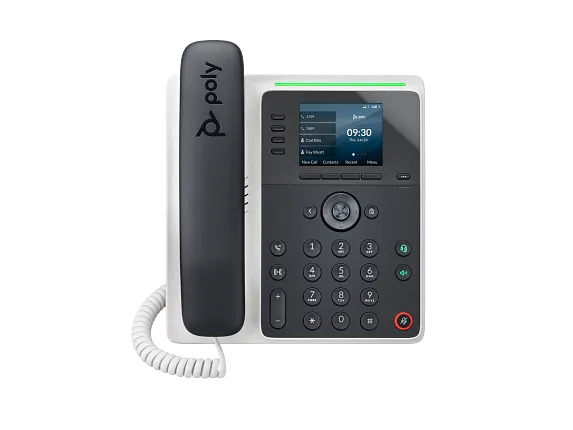
Freeze the exact phone and first wrong state
Record E100 or E220, printed part number, software model, MAC address, installed PVOS build, power source, switch port, LAN and PC cabling, voice VLAN source, provisioning owner, template revision, physical key, page and accessory. Redact credentials, personal numbers, certificates and packet payloads before sharing.
Classify the first divergence: wrong model, wrong radio assumption, failed link, wrong VLAN, failed fetch, competing configuration source, overwritten key, unregistered account, rejected subscription, Bluetooth route or unapproved firmware.
Reconcile physical keys, pages and effective assignments
E100 has two physical keys and eight configurable assignments; E220 has four and sixteen. Both paginate across four pages. Capture key number, page, category, line, value, label, configuration source and observed state. Compare the effective value with the intended SIP line, BLF, enhanced feature key, speed dial or presence target.
A visible label, saved template or registration icon does not prove that the intended configuration won, a subscription was accepted or a transfer completed.
Prove power, Ethernet, VLAN and time in order
Verify PoE budget and negotiation, link, LAN versus PC port, switch profile, LLDP or DHCP discovery, tagged or untagged voice VLAN, address, gateway, DNS, NTP and certificate time. E100 and E220 use wired Ethernet for network service; neither gains Wi-Fi from the family page.
Preserve the first failed gate before changing SIP credentials. Power, link, IP reachability, configuration download, registration and a completed media call are separate outcomes.
Trace provisioning authority through effective state
Record Poly Lens or provider assignment, provisioning URL, requested file, response, matched model, configuration revision, apply or reboot event and effective values. Check whether a local or flexible-line-key assignment overrides the expected default or custom mapping.
Correct one owner rather than repeatedly resetting the phone. Preserve old and new values, approval, effective time and rollback, then repeat the same boot, fetch, apply and key observation.
Keep E220 Bluetooth apart from E100 and from network service
E220 supports Bluetooth; E100 does not. Neither supports Wi-Fi. For E220, check accessory model, pairing, selected audio route, answer, mute, volume and hang-up. For E100, follow the approved wired or EHS path. In both cases, verify two-way audio and call control separately.
A paired Bluetooth icon or headset light does not establish network reachability, SIP registration, negotiated media or compatible remote controls.
Verify PVOS, registration, calls and emergency handling
Compare installed PVOS with the approved provider or administrator path and current HP release evidence. Preserve source, backup, certificate state, pilot, rollback and recovery before change. Afterward, verify the effective build, template, keys, registration, signaling, SDP and RTP rather than treating a reboot as success.
Retest the original workflow, then the required hold, transfer, voicemail, headset and restart cases. Validate emergency-location handling separately. One recovery does not prove fleet compatibility, support life, availability or price. No device or live workflow was tested for this diagnostic.
Sources & applicability
Primary references for the technical details above. Operational examples and planning checklists are VoIP.info editorial guidance.
- HP Poly Edge E Series product family ↗
- HP Poly Edge E Series Administrator Guide, PVOS 8.2.1 ↗
- HP Poly Edge E Series User Guide, PVOS 8.2.1 ↗
- HP Poly Voice Software 8.6.1 release notes ↗
- HP Poly Edge E Series flexible line key assignments ↗
- HP Poly Edge E Series PVOS 8.0.0 release notes ↗
- HP Poly Edge E Series safety and regulatory notices ↗
- HP Poly Edge E100 and E220 specification sheet ↗
Examples require adaptation to your topology. No live PBX or hardware testing is claimed.