Confirm that capture starts
A calling page needs an appropriate secure context and user permission to capture a microphone. Browser permission, operating-system privacy controls and the selected physical device can each prevent capture. A headset that works in another application does not establish that this website has access to it. Check the site's permission state, the application's selected input and whether the captured track is live and enabled. Record the browser's error name rather than reducing every failure to no audio. Avoid repeatedly prompting the user without explaining which permission or device needs attention.
Follow sound in each direction
If local capture shows activity but the remote party hears nothing, inspect outgoing media counters and the remote receive path. If incoming packets arrive but the local user hears silence, inspect output selection, volume, mute and playback restrictions. A muted microphone and a muted speaker are different failures. For Bluetooth equipment, operating-system profile changes can alter input availability and sound quality. Repeat with a known wired device to isolate that boundary, then return to the intended headset. Do not conclude that the SIP codec changed merely from a change in local playback quality.
Reproduce device transitions
Test unplug/replug, switching input during a call, browser reload and operating-system sleep. Confirm that the application handles a removed device and offers a usable replacement. Device labels or identifiers can behave differently before permission is granted and across browser sessions. Keep support notes limited to the relevant device names, permission state and counters. Do not collect microphone recordings by default. Once capture and playback are established, move to WebRTC transport troubleshooting with a clear statement of which direction fails.
Treat V52 enumeration and browser permission separately
The Studio V52 reference keeps USB enumeration, operating-system permission, browser or meeting-client selection and far-end receipt as separate evidence.
Keep V72 enumeration, permission and receipt distinct
The Studio V72 reference separates USB enumeration, OS or browser permission, meeting-client selection and far-end receipt.
Treat JsSIP getUserMedia failure as its own boundary
The JsSIP diagnostic keeps permission, SDP, ICE, RTP and playback separate.
Keep Zoom Phone local device and call-media evidence separate
The Zoom Workplace diagnostic distinguishes operating-system defaults, app selections, attachment, *8378 playback, external call media and remote audibility.
Keep NextivaONE microphone, speaker and ringer independent
The NextivaONE diagnostic distinguishes permissions, app selection, local tests and two-way call media.
Separate Teams mic, speaker and secondary ringer
The Teams Phone diagnostic distinguishes operating-system defaults, Teams selections, test-call playback and live-call media.
Separate Dialpad microphone, call output and ringtone output
The Dialpad app diagnostic distinguishes operating-system defaults, app choices, local tests and call-specific media.
Separate 8x8 microphone processing from live media
The 8x8 Work diagnostic distinguishes device choice, permission, noise suppression, gain control, packet flow and perceived audio.
Separate Vonage app audio choices from live media
The VBC diagnostic distinguishes operating-system and app devices, permission, echo playback, packet flow and perceived audio.
Separate Aircall device tests from live call media
The Aircall diagnostic distinguishes browser permission, operating-system and app devices, test playback, packet flow and what each party heard.
Watch the explanation
This walkthrough uses Jabra Direct to discover a headset and pair it with a USB Bluetooth adapter. It helps separate two tasks that are often confused: pairing the headset to the adapter and choosing that adapter as the calling application’s audio device.
Read applicability and editorial notes →Watch this video here
Shows Evolve 65 and also discusses Evolve2 65. These are different product generations; bundled adapter models and Jabra Direct screens can differ. Review used the available transcript and primary references; audio and screen readability remain unverified.
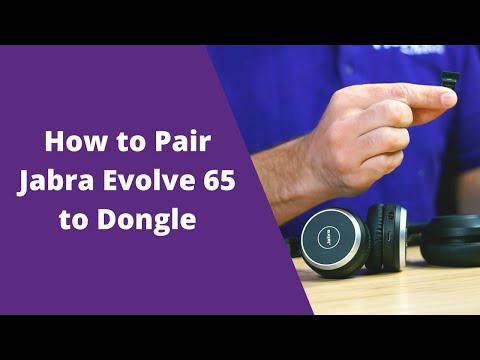
The player loads only when you choose Watch here. Playback uses YouTube’s privacy-enhanced embed; YouTube processes playback data.
The manufacturer’s captions walk through USB connection, selecting recording and playback devices, and choosing the headset in a softphone. This is a useful starting point when a wired headset is connected but calls still use the laptop microphone or speakers.
Read applicability and editorial notes →Watch this video here
USB-A and USB-C Evolve2 40 variants; software and Teams-specific controls vary by edition. Review used the available transcript and primary references; audio and screen readability remain unverified.

The player loads only when you choose Watch here. Playback uses YouTube’s privacy-enhanced embed; YouTube processes playback data.
Sources & applicability
Primary references for the technical details above. Operational examples and planning checklists are VoIP.info editorial guidance.
- W3C: Media Capture and Streams ↗
- HP Poly Studio V52 product page ↗
- HP Poly Studio V52 data sheet ↗
- HP Poly Studio V52 product specifications ↗
- HP Poly Studio V52 user guide ↗
- HP Poly Studio V52 administrator guide ↗
- HP Poly VideoOS Lite release notes ↗
- HP Poly Studio Desktop release notes ↗
- HP Poly Studio V52 and V72 VideoOS Lite 1.6.0 notice ↗
- HP Poly room preparation guide ↗
- HP Poly Studio USB video bars ↗
- HP Poly Studio V72 product page ↗
- HP Poly Studio V72 data sheet ↗
- HP Poly Studio V72 product brief ↗
- HP Poly Studio V72 product specifications ↗
- HP Poly Studio V72 hardware user guide ↗
- HP Poly VideoOS Lite Administrator Guide ↗
- HP Poly Studio V Family Privacy Guide ↗
- HP Poly Studio V72 LED status indicators ↗
- JsSIP project site ↗
- JsSIP architecture overview ↗
- JsSIP documentation index ↗
- JsSIP current UA API ↗
- JsSIP current RTCSession API ↗
- JsSIP failure and end causes ↗
- JsSIP 3.10 getting-started guide ↗
- JsSIP 3.10 UA configuration parameters ↗
- JsSIP project repository ↗
- JsSIP repository changelog ↗
- Published JsSIP npm package ↗
- Zoom — getting started with Zoom Phone for users ↗
- Zoom — phone settings in Zoom Workplace and Zoom Web App ↗
- Zoom — Workplace desktop system requirements ↗
- Zoom — Workplace mobile system requirements ↗
- Zoom — Workplace app release notes ↗
- Zoom — Zoom Phone frequently asked questions ↗
- Zoom — meeting and phone statistics ↗
- Zoom — sending a Zoom Phone problem report ↗
- Zoom — network firewall and proxy settings ↗
- Zoom — Network Connectivity Tool ↗
- Zoom — troubleshooting sign-in issues ↗
- Zoom — testing device audio for Zoom Phone ↗
- Nextiva — NextivaONE support landing page ↗
- Nextiva — NextivaONE getting started and system requirements ↗
- Nextiva — NextivaONE troubleshooting tips ↗
- Nextiva — managing calls in NextivaONE ↗
- Nextiva — NextivaONE Mobile FAQs ↗
- Nextiva — setting the default NextivaONE audio device ↗
- Nextiva — gathering NextivaONE log files ↗
- Nextiva — NextivaONE call feedback ↗
- Nextiva — NextivaONE unable to log in ↗
- Nextiva — updating the NextivaONE desktop application ↗
- Nextiva — networking guidelines and NextivaONE ports ↗
- Nextiva — NEXT release notes ↗
- Nextiva — signing in to the NEXT desktop app ↗
- Microsoft Learn — Microsoft Teams client ↗
- Microsoft Learn — Teams client system requirements ↗
- Microsoft Learn — set up Teams Phone ↗
- Microsoft Learn — Teams dial pad configuration ↗
- Microsoft Support — manage Teams call settings ↗
- Microsoft Support — troubleshoot Teams mobile notifications ↗
- Microsoft Learn — configure Teams calling policies ↗
- Microsoft Learn — Teams client health dashboard ↗
- Microsoft Learn — diagnostic logs for Teams Client ↗
- Microsoft Learn — collect Teams client diagnostic logs ↗
- Microsoft Learn — monitor and troubleshoot Teams meetings and calls ↗
- Microsoft Learn — manage emergency calling policies in Teams ↗
- Microsoft Learn — Teams user location consent ↗
- Dialpad — app requirements ↗
- Dialpad — download Dialpad ↗
- Dialpad — use the Dialpad web app ↗
- Dialpad — app updates ↗
- Dialpad — your Dialpad profile ↗
- Dialpad — make a call ↗
- Dialpad — receive a call ↗
- Dialpad — check your in-app audio settings ↗
- Dialpad — network setup recommendations ↗
- Dialpad — System Test ↗
- Dialpad — app troubleshooting ↗
- Dialpad — troubleshooting outbound calls ↗
- Dialpad — Quality of Service Dashboard ↗
- Dialpad — E911 Emergency Services ↗
- Dialpad — Dynamic E911 ↗
- 8x8 — download 8x8 Work for Desktop and system requirements ↗
- 8x8 — Work for Desktop version end-of-life policy ↗
- 8x8 — get started as an XF Workspace user ↗
- 8x8 Work for Desktop — site map and capability visibility ↗
- 8x8 Work for Desktop — set your presence status ↗
- 8x8 Work for Desktop — notification and incoming-call settings ↗
- 8x8 Work for Desktop — manage call quality ↗
- 8x8 Work for Desktop — microphone noise suppression and AGC ↗
- 8x8 — use the Network Utility tool ↗
- 8x8 Network Utility — troubleshooting ↗
- 8x8 Admin Console — set up emergency address for users ↗
- 8x8 — Nomadic 911 FAQ ↗
- 8x8 — product feedback versus support cases ↗
- 8x8 — use service during an Internet or power outage ↗
- Vonage Business — Vonage Desktop App ↗
- Vonage Business — Vonage Mobile App ↗
- Vonage Business — VBC Applications Compatibility ↗
- Vonage Business — Manage Emergency Services ↗
- Vonage Business — Network Requirements and Best Practices ↗
- Vonage Business — Troubleshoot Desktop App Issues ↗
- Vonage Business — Vonage Desktop App MSI Installation ↗
- Vonage Business — Apply Extension Settings ↗
- Vonage Business — Call Continuity Service ↗
- Vonage Business — Network Quality Tool ↗
- Vonage Business — Perform Echo Test for Voice Calls ↗
- Aircall — Workspace downloads ↗
- Aircall — What is Aircall Workspace? ↗
- Aircall — Access Workspace and make calls ↗
- Aircall — Mobile device requirements for Workspace ↗
- Aircall — Device and headset recommendations ↗
- Aircall — Keeping Workspace up to date ↗
- Aircall — Workspace audio settings ↗
- Aircall — Audio quality troubleshooting guide ↗
- Aircall — Workspace network diagnostics ↗
- Aircall — Emergency address setup for US and Canada numbers ↗
- Aircall — Workspace inbound calls ↗
- Aircall — Contacting Aircall Support ↗
Examples require adaptation to your topology. No live PBX or hardware testing is claimed.